
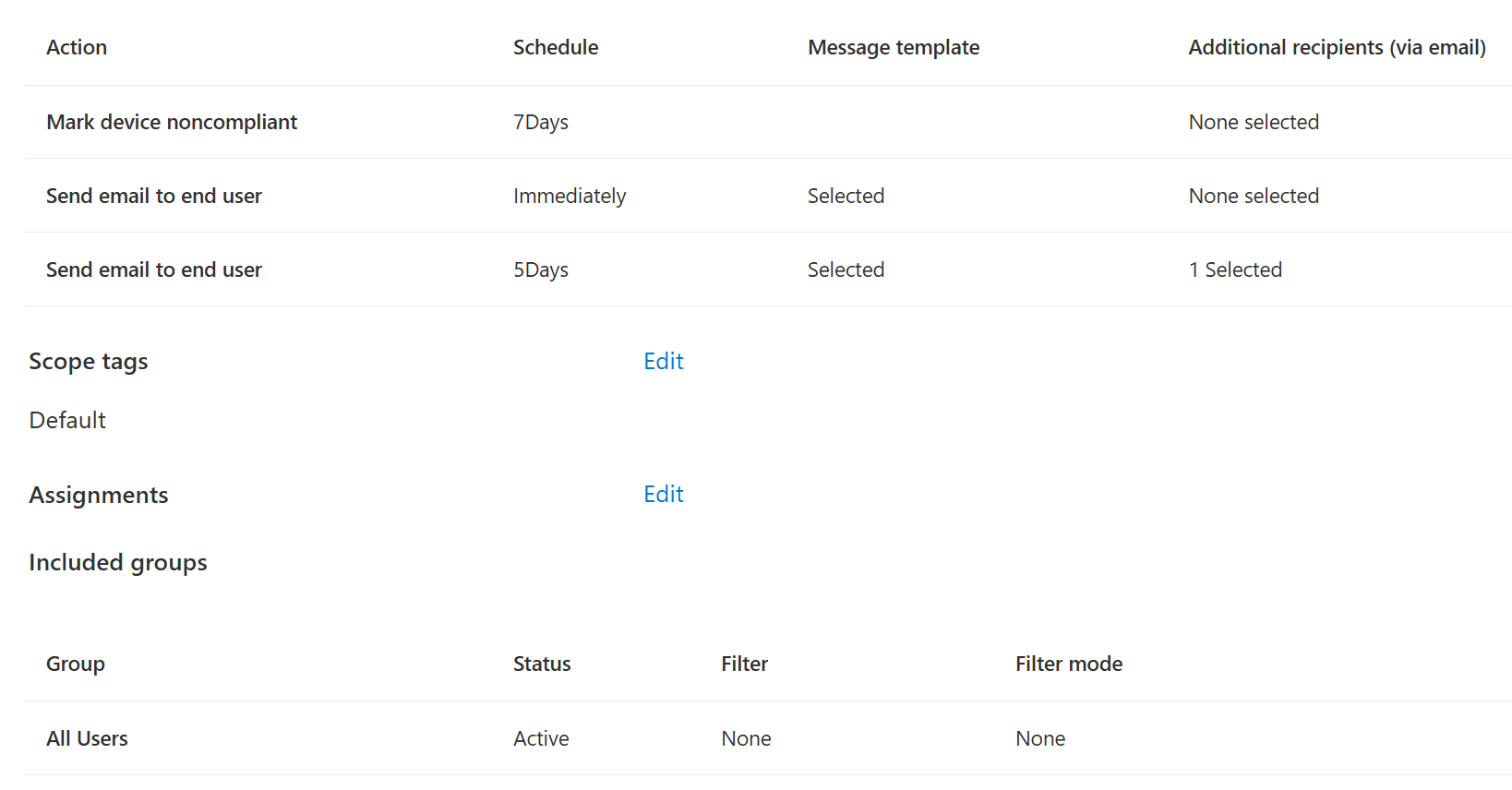
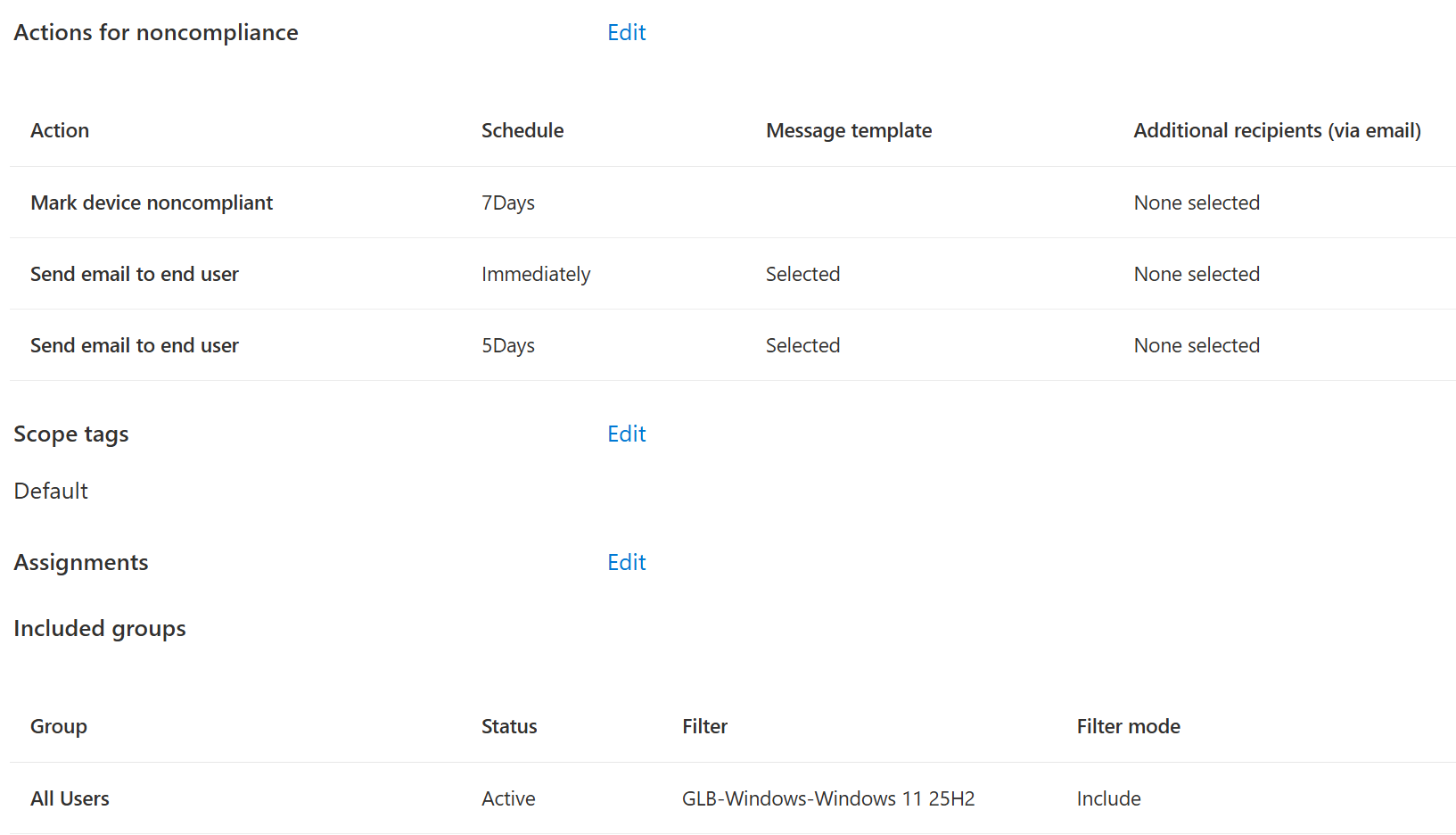
In Part 1, I went through the overall compliance design: assignments, noncompliance actions, Conditional Access, monitoring and the difference between configuring a device and checking its state.
Now it is time to look at the actual platform policies.
Windows normally gets most attention because it has many built-in compliance settings and supports custom compliance. But having more settings does not mean that every setting should be enabled. A good compliance policy is not a list of everything Intune can check. It is a list of requirements which the organization can configure, measure, support and remediate.
Microsoft also recommends starting with minimal compliance requirements and expanding towards enhanced and advanced controls when the dependencies are ready. This is a much better approach than building the strictest possible policy on day one.
Compliance policies for Windows
The Windows 10 and later compliance policy contains settings for device health, operating-system versions, Configuration Manager compliance, system security, Microsoft Defender for Endpoint and Windows Subsystem for Linux.
The setting names can make the policy look like a security baseline. It is not the same thing.
A configuration or endpoint security policy creates the required state. Compliance evaluates the state and can make it part of an access decision. Some compliance settings can also affect the local device, but I still want a separate configuration policy which owns the actual configuration. Microsoft also recommends coordinating configuration and compliance settings to avoid policy conflicts.
My normal design question is therefore:
If this compliance check fails, which policy or operational process brings the device back to compliance?
If the answer is “we do not have one”, then the setting is probably not ready for production enforcement.
Device health
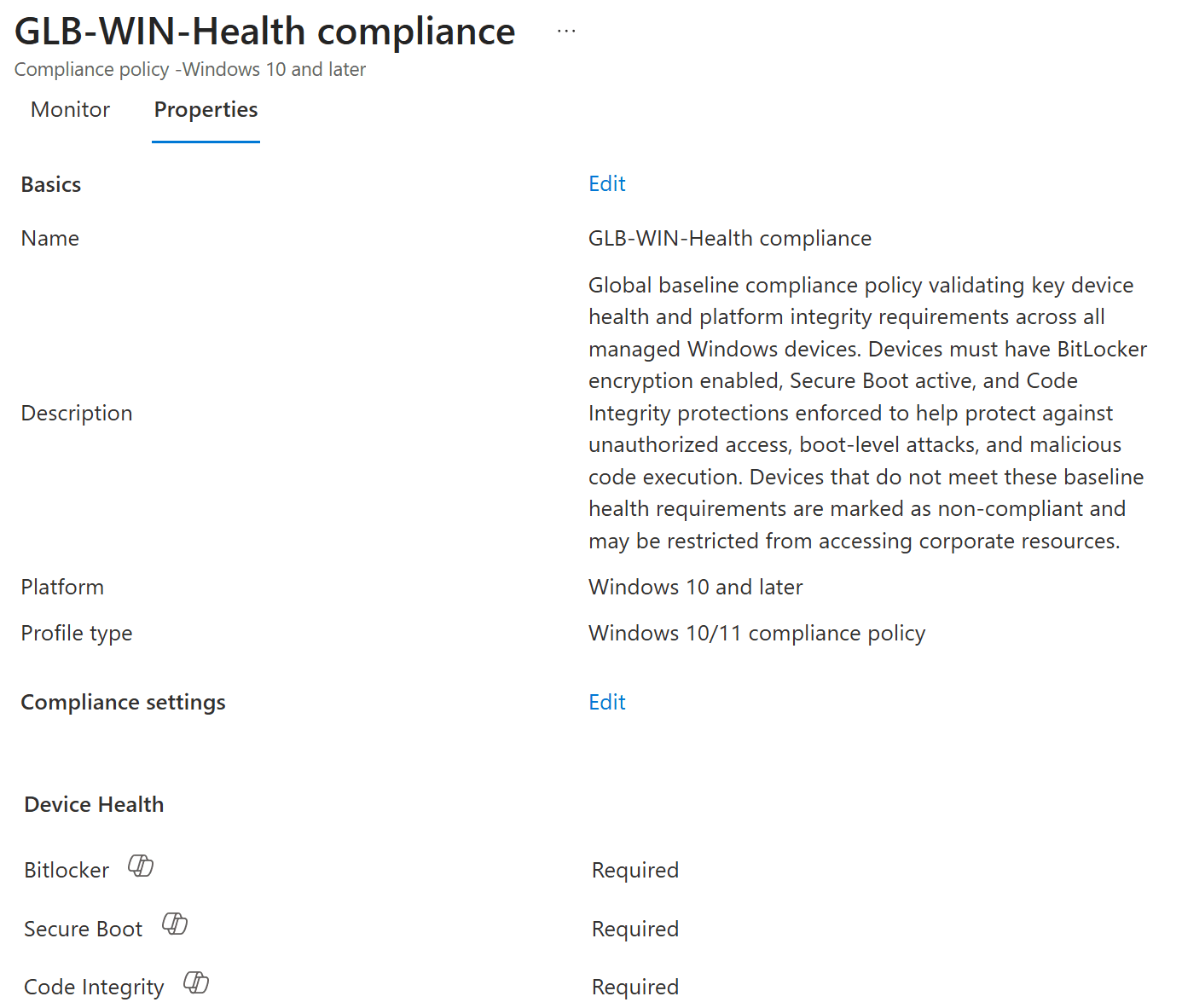
The most interesting Windows device-health checks are:
- Require BitLocker
- Require Secure Boot
- Require code integrity
These are strong security signals, but they also have dependencies.
For example, the BitLocker compliance state that uses Windows Health Attestation is measured at boot. A device can finish encryption but still require a restart before the new state is reported as compliant. Secure Boot also requires compatible firmware and TPM capabilities. Devices which do not support the expected attestation can become noncompliant even when nothing is technically broken on the device.
This is why device-health settings must be tested against the real hardware estate. A new corporate laptop, an old production workstation, a Cloud PC and a virtual desktop might not provide exactly the same signals.
NOTE! Do not test device health only with the IT team’s newest laptops. Include older models, remote devices, devices with pending restarts and the virtual-device scenarios which are actually used in production.
BitLocker and encryption
Windows compliance contains both Require BitLocker and the more generic Encryption of data storage on a device setting.
The generic encryption setting checks encryption at the operating-system-drive level. Microsoft describes Require BitLocker as the stronger check because it uses Windows Device Health Attestation to validate BitLocker status at the TPM level. The tradeoff is that a reboot might be needed before compliance sees the current state.
Before requiring BitLocker in compliance, I want to verify that:
- BitLocker is configured with an Endpoint security disk-encryption policy or another supported configuration method.
- The intended drives are encrypted.
- Recovery keys are successfully stored.
- Helpdesk can access the recovery key using an approved process.
- Existing devices can complete encryption before access is enforced.
- The restart requirement has been communicated.
Microsoft recommends the Endpoint security Disk encryption policy as the focused Intune policy type for BitLocker and also recommends planning recovery before enabling encryption. I build BitLocker policies currently using Settings catalog.
Secure Boot and code integrity
Secure Boot verifies the integrity of components used during the boot process. Code integrity detects unsigned or modified drivers and system files loaded into the kernel.
Both are useful checks, especially for modern corporate Windows devices. However, I would not enable them globally before confirming hardware, firmware and virtualization support. Microsoft notes that devices without the required TPM support can report Secure Boot as noncompliant.
There is also another operational topic around Secure Boot: firmware and certificate maintenance. Compliance can tell us whether Secure Boot is enabled, but it does not replace firmware lifecycle management. These are related topics, but they are not the same control.
Operating-system versions
Minimum OS version is a useful compliance requirement when it represents a real support or security boundary.
The problem is ownership. A version number entered today becomes outdated later. If no one maintains it, the setting becomes either meaningless or suddenly blocks a large device population.
Windows compliance supports:
- Minimum and maximum OS versions
- Valid operating-system build ranges
Valid build ranges are useful when multiple Windows releases are supported at the same time. Microsoft notes that the Company Portal remediation message only shows the first configured range, so the accepted builds should also be documented somewhere users and support can access.
I use maximum OS version only when there is a well-defined reason. If a device upgrades to a newer Windows version before the compliance policy is updated, that device can lose access. Windows Update policies are usually the better place to control rollout. Compliance should describe the minimum version allowed to access company data.
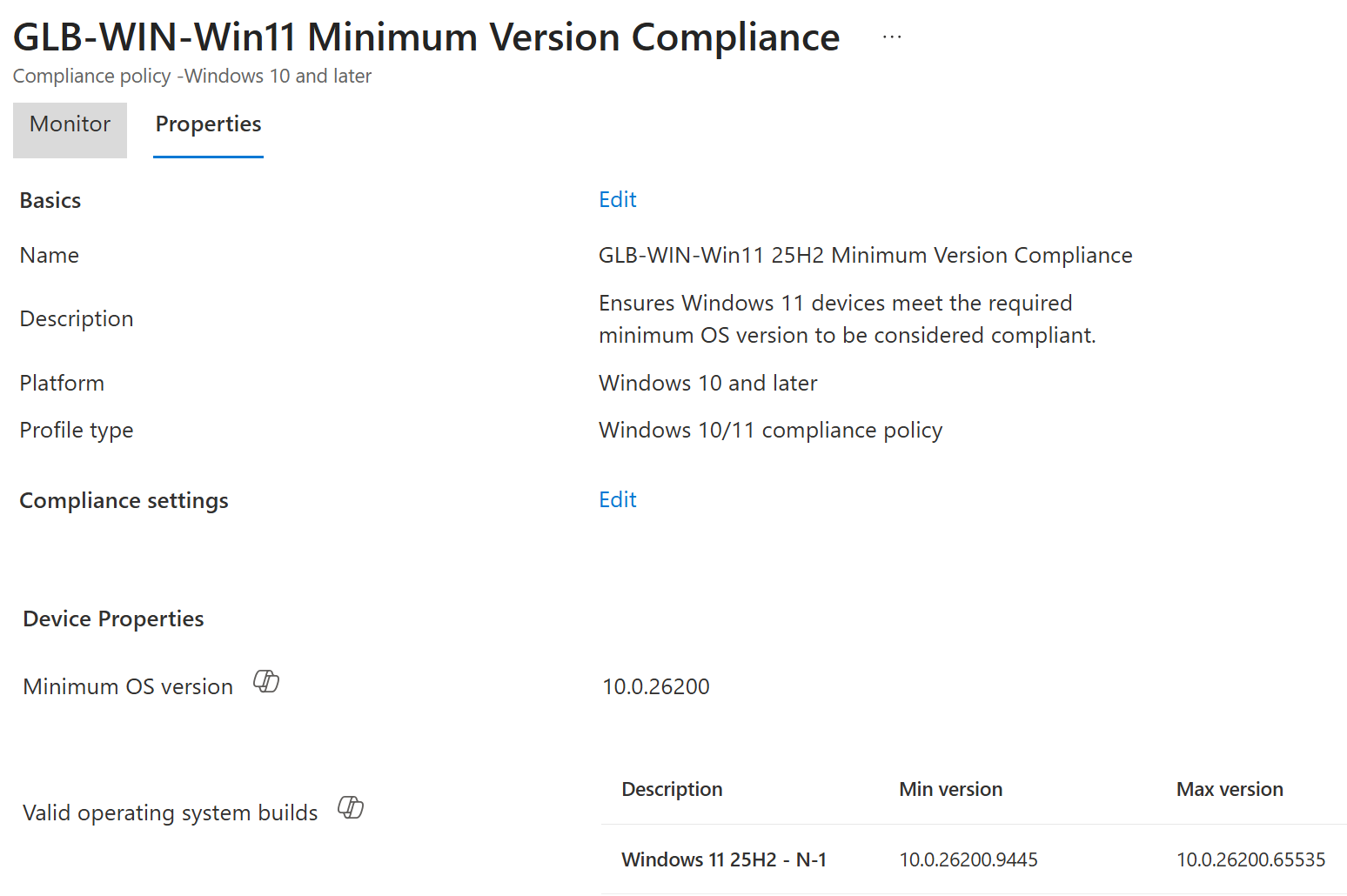
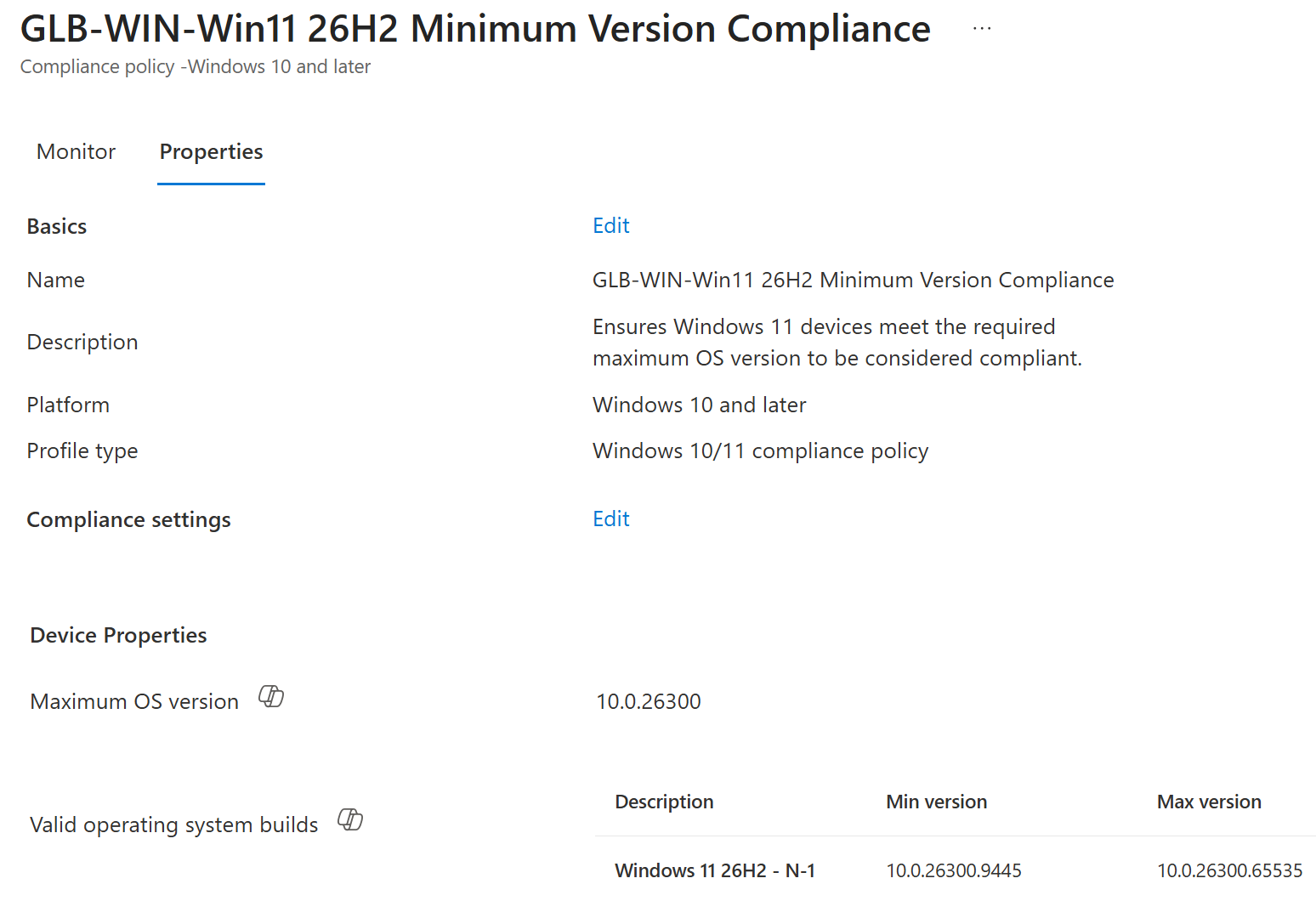
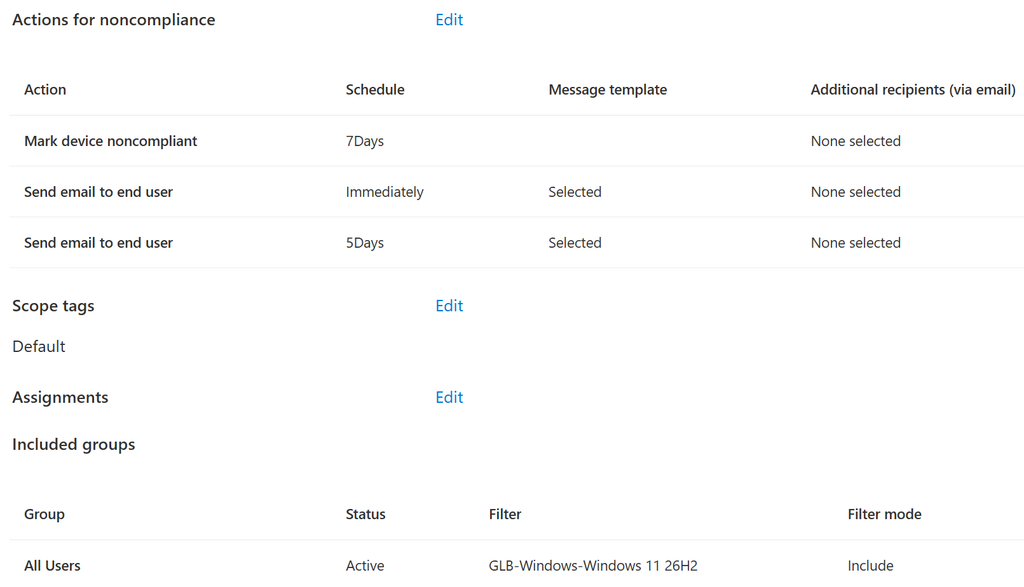
NOTE! The minimum version needs an owner, review schedule and emergency-change process. If somebody cannot safely update the value during an urgent vulnerability, it is not an operational control yet.
Firewall, antivirus and Defender
Windows compliance can check firewall, antivirus, antispyware, Microsoft Defender Antimalware, security-intelligence freshness and real-time protection.
The normal antivirus check uses products registered with Windows Security Center, including supported third-party products. The Defender-specific checks are meant for Microsoft Defender. These are not automatically interchangeable.
This is important in environments where another security product is the primary antivirus. Before enabling a Defender-specific requirement, verify how Defender is operating and what the intended security product reports to Windows.
I normally start by checking:
- Is the firewall enabled and managed?
- Is the intended antivirus registered and healthy?
- Is real-time protection expected from Microsoft Defender?
- Can the security product repair the failing state?
- Does an on-premises Group Policy override the Intune configuration?
Microsoft specifically documents that conflicting Group Policy firewall settings can cause a device to remain noncompliant even when an Intune policy tries to enable Windows Firewall.
Microsoft Defender for Endpoint machine risk
When Microsoft Defender for Endpoint is integrated with Intune, compliance can require the device to remain at or below a selected machine-risk level.
This is a different type of signal. BitLocker and Secure Boot describe device configuration or boot health. Defender risk describes active security exposure detected by the threat-protection service. Microsoft supports the values Clear, Low, Medium and High, with the configured value defining the maximum risk accepted by compliance.
Before using risk as an access gate, test the complete recovery chain:
- Defender detects a threat and changes the device risk.
- Intune receives the risk and updates compliance.
- Conditional Access reacts to the noncompliant state.
- The threat is remediated in Defender.
- Defender lowers the risk.
- Intune reevaluates compliance.
- Access is restored.
A risk policy is easy to enable. Troubleshooting across Defender, Intune and Entra is the part which needs planning.
My sensible Windows starting point
For a normal corporate Windows fleet, I would first evaluate:
- BitLocker, with working configuration and recovery.
- Secure Boot and code integrity on supported devices.
- Firewall and antivirus state which matches the security product in use.
- A maintained minimum Windows version.
- Defender for Endpoint machine risk when the integration and remediation process are mature.
Password settings require more thought, especially with Windows Hello for Business and other passwordless methods. Device-password compliance and user authentication are not the same thing. I would not keep old password requirements only because they have always existed in the policy.
Custom compliance policies for Windows
Built-in compliance should be the first choice.
Microsoft owns the built-in detection and integrates the result directly into Intune reporting. Custom compliance is useful when the requirement is important for access, but no suitable built-in setting exists.
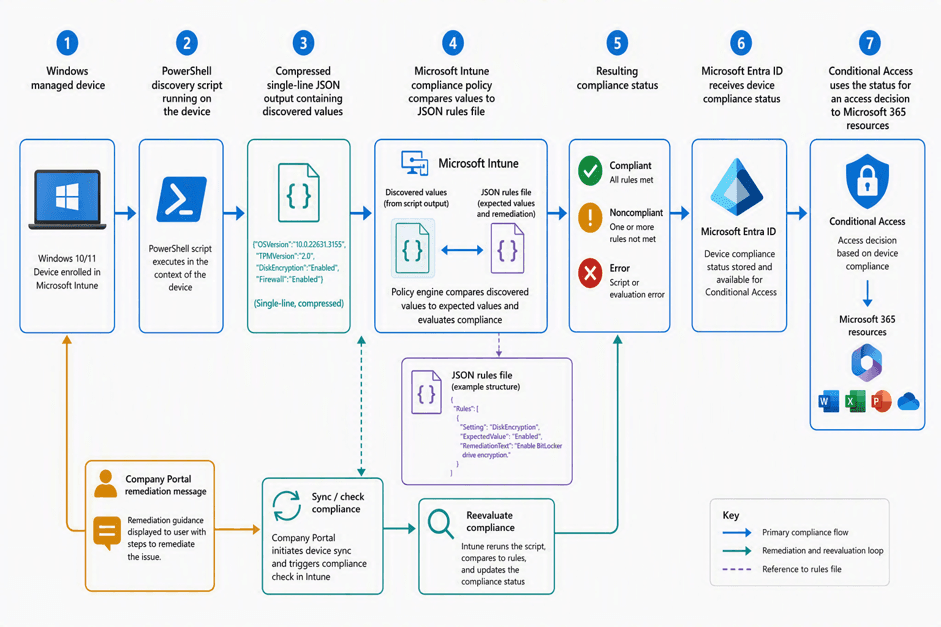
A Windows custom compliance check has two main parts:
- A PowerShell discovery script runs on the device and returns discovered values as compressed JSON.
- A JSON rules file describes the expected values, data types, comparison operators and remediation messages.
The discovery script must be uploaded before creating the policy. Each compliance policy supports one discovery script, although the script can return several settings. The same discovery script can only be associated with one compliance policy.
The following diagram shows how the pieces fit together.
Windows prerequisites
Custom compliance for Windows supports managed Windows editions except Windows Home. Windows uses PowerShell for discovery, and the Intune Management Extension performs the script work. If the extension is missing when the custom-compliance policy arrives, Intune installs it on the device.
The script can run in system or logged-on-user context. It can also use the 32-bit or 64-bit PowerShell host, and script-signature checking can be enabled. These choices matter when the script reads user-specific registry values, 64-bit software locations or protected system information.
The final PowerShell output must be compressed JSON:
return $results | ConvertTo-Json -CompressKeep the output small and predictable. Do not return logging, progress messages or a complete device inventory together with the JSON result.
JSON rules
The rules file maps values returned by the script to compliance decisions.
A rule includes:
- SettingName
- Operator
- DataType
- Operand
- MoreInfoURL
- RemediationStrings
SettingName is case-sensitive and must match the property returned by the script. Microsoft supports Boolean, Int64, Double, String, DateTime and Version data types, together with equality and greater-than/less-than comparison operators. At least an en_US remediation string is required.
The remediation text is not only decoration. It is what the user sees when the check fails. “Device is noncompliant” is not useful. “Update VPN-client to version 8.2 or contact Service Desk” is already much better.
Good custom-compliance use cases✅
Custom compliance makes sense when you need to:
- Validate that a required third-party security agent is installed and running.
- Check a business-critical service which has no built-in compliance setting.
- Verify an approved application or firmware version.
- Evaluate a configuration value which directly affects the device trust decision.
- Build a temporary access control while waiting for a built-in capability.
Bad custom-compliance use cases❌
I would avoid custom compliance when:
- A reliable built-in setting already exists.
- The script is being used to configure or repair the device.
- The value changes constantly and creates unstable compliance.
- The condition cannot be reasonably remediated.
- Nobody owns the script after deployment.
- The script returns a large inventory instead of a small security decision.
Custom compliance is detection, not remediation. Use configuration profiles, Endpoint security policies, Remediations or application management to fix the state.
Treat the script as production code
The script can affect Conditional Access, so it has to be handled like production code.
I recommend:
- Store the script and JSON rules together in version control.
- Test the same execution context used by Intune.
- Handle missing registry values, applications and services.
- Return a controlled result when detection fails.
- Avoid network dependencies where possible.
- Test script updates before replacing production logic.
- Document the owner and the reason for every rule.
Intune does not validate PowerShell syntax when a discovery script is uploaded. Microsoft also documents limits for script size, output and runtime, so discovery should remain focused and fast.
NOTE: Test negative situations on purpose. Stop the service, remove the application, return a null value and cause a controlled script failure. A check is not trustworthy if it has only been tested when everything works.
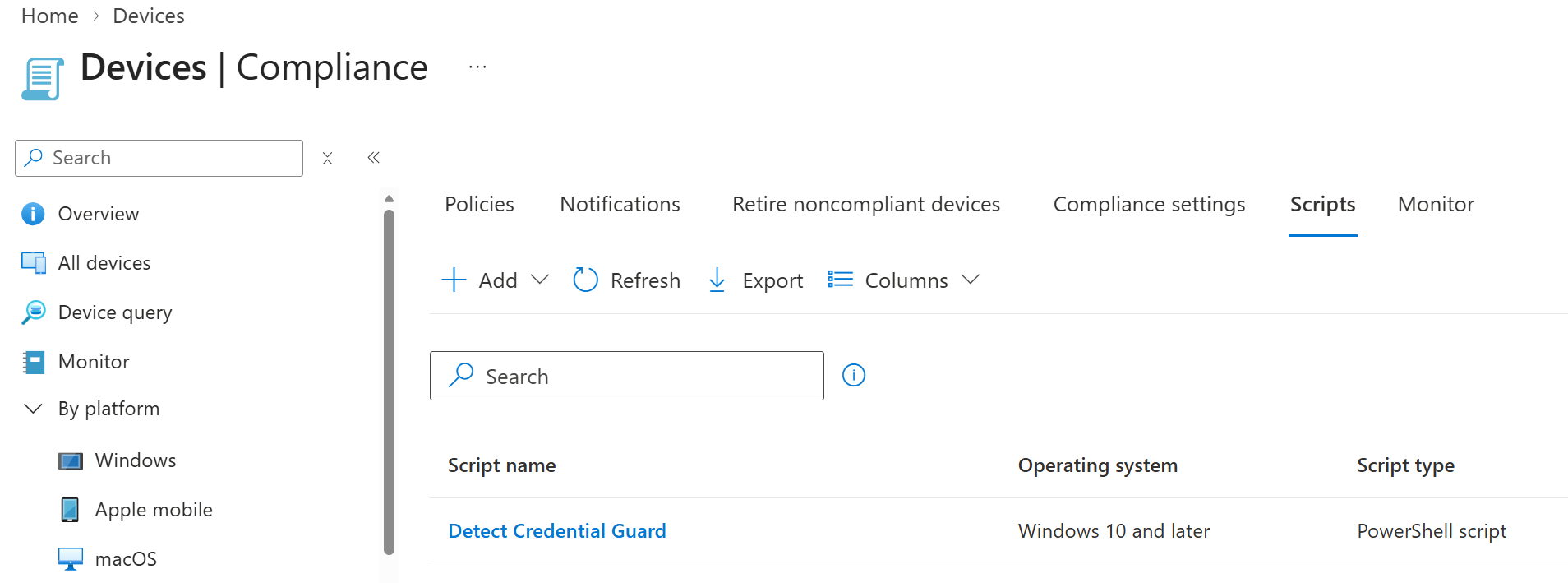
Credential Guard custom compliance
$ErrorActionPreference = 'Stop'

$deviceGuard = @(Get-CimInstance -Namespace 'root\Microsoft\Windows\DeviceGuard' `
    -ClassName 'Win32_DeviceGuard' -OperationTimeoutSec 60 -ErrorAction Stop)

if ($deviceGuard.Count -ne 1) {
    throw "Expected one Win32_DeviceGuard instance; found $($deviceGuard.Count)."
}

if ($null -eq $deviceGuard[0].SecurityServicesRunning) {
    throw 'Win32_DeviceGuard did not return SecurityServicesRunning.'
}

return @{
    CredentialGuardRunning = [bool]($deviceGuard[0].SecurityServicesRunning -contains 1)
} | ConvertTo-Json -Compress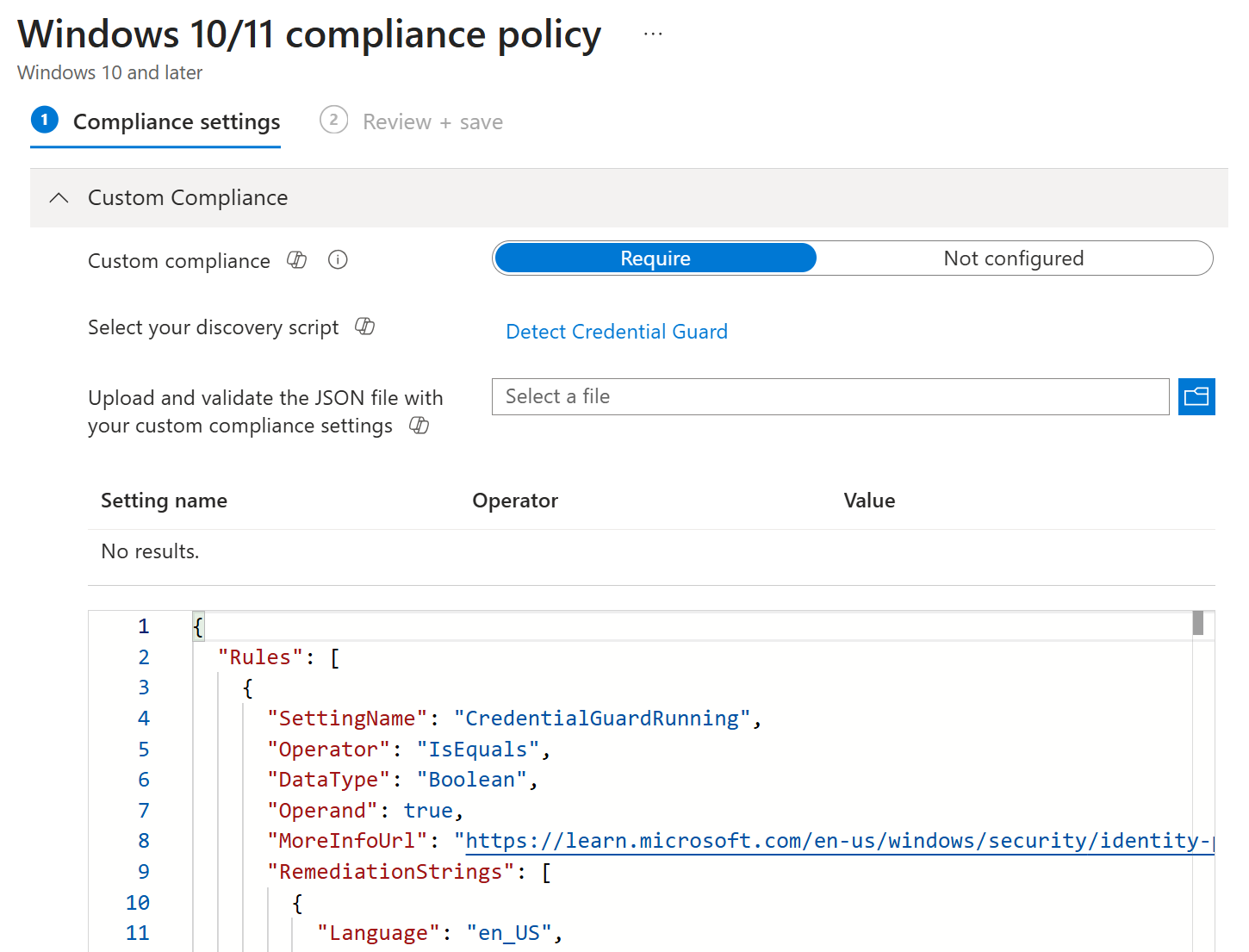
{
  "Rules": [
    {
      "SettingName": "CredentialGuardRunning",
      "Operator": "IsEquals",
      "DataType": "Boolean",
      "Operand": true,
      "MoreInfoUrl": "https://learn.microsoft.com/en-us/windows/security/identity-protection/credential-guard/configure",
      "RemediationStrings": [
        {
          "Language": "en_US",
          "Title": "Credential Guard must be running.",
          "Description": "Restart your device if security settings were recently applied, then sync it from Company Portal. If the issue persists, contact IT to verify Credential Guard policy, virtualization prerequisites, and device support."
        }
      ]
    }
  ]
}
Monitoring and troubleshooting
Custom compliance results are available with the built-in compliance details in Intune. For reporting, Microsoft points to Reports > Device compliance > Noncompliant devices and settings.
Useful custom-compliance error codes include:
- 65007 – Script returned failure
- 65008 – Setting is missing from the script result
- 65009 – Invalid JSON for the discovered setting
- 65010 – Invalid data type for the discovered setting
Windows discovery normally runs on the Intune Management Extension schedule. A user can trigger Check Compliance, but this does not download a new or updated script. Microsoft also notes that it can take up to eight hours before a fixed custom setting returns to compliant.
My troubleshooting order is:
- Confirm that the correct policy is assigned.
- Confirm that the Intune Management Extension is healthy.
- Run the script locally in the correct context and PowerShell architecture.
- Validate that there is only one JSON object in the output.
- Compare property names and data types with the rules file.
- Review the per-setting result and error code in Intune.
- Trigger a new compliance check and allow the evaluation cycle to complete.
- Only after this, troubleshoot the Conditional Access result.
Compliance policies for other platforms
The same compliance model works across platforms, but the settings are not identical. Microsoft currently provides compliance policy options for Windows, macOS, iOS/iPadOS, Android Enterprise, Android AOSP and supported Linux distributions. Android device administrator still appears in documentation for limited legacy scenarios, but Microsoft has deprecated it for devices with Google Mobile Services and recommends moving to another Android management option.
The goal should be a comparable trust level, not identical settings.
macOS
macOS compliance can evaluate:
- System Integrity Protection
- Minimum and maximum OS or build versions
- Password requirements
- Device encryption
- Firewall, incoming connections and stealth mode
- Gatekeeper application-source restrictions
Device compliance evaluation is not supported for userless macOS devices. Be careful with password compliance. Microsoft warns that requiring a password in a macOS compliance policy can expire existing passwords for all accounts, including accounts created by LAPS and Platform SSO. Microsoft recommends managing device passwords with a Settings Catalog policy where Change At Next Auth is configured to False.
For FileVault, use the same approach as BitLocker: configure encryption and recovery-key handling first, then use compliance as the access signal.
Custom compliance is now also available for macOS, using a shell discovery script and JSON rules. I would still use the built-in settings when they cover the requirement and reserve custom checks for real gaps.
iOS and iPadOS
iOS/iPadOS compliance includes device-integrity, OS-version, threat, passcode and restricted-application checks. Microsoft documents jailbroken-device detection, minimum OS and build versions, Microsoft Defender for Endpoint machine risk and mobile threat-defense signals for supported iOS/iPadOS versions.
Apple updates can change the build number without changing the main OS version, so minimum build version can be more accurate than checking only the marketing version. It also requires active maintenance.
Passcode requirements can start device encryption on iOS/iPadOS. Supervision, enrollment model and ownership still affect what can be configured and how users experience the policy.
For personal devices, decide whether full device enrollment is justified. In many BYOD cases, App Protection Policies can protect company data inside supported applications without managing the complete personal device. See my older blog posts about App Protection policies!
Android Enterprise and AOSP
Android is not one platform model from an Intune design perspective.
Android Enterprise includes:
- Personally owned devices with a work profile
- Corporate-owned devices with a work profile
- Fully managed devices
- Dedicated devices
AOSP provides separate scenarios for devices without Google Mobile Services.
Android Enterprise compliance can evaluate rooted status, Play Integrity, OS version, security patch level, encryption, password complexity, Intune app integrity and threat signals. The exact options depend on the enrollment mode.
Dedicated-device compliance should be assigned to device groups, not user groups. Microsoft also notes that a user on a dedicated device without Microsoft Entra shared device mode cannot sign in to resources protected by Conditional Access, even if Intune reports the device as compliant.
Security patch level is useful, but OEM and carrier update schedules vary. Before enforcing a date, confirm that every supported model can actually receive the required update.
Linux
Linux compliance is narrower than Windows, but it supports useful controls for managed developer and engineering workstations.
Current Microsoft guidance lists Ubuntu Desktop 24.04 or 26.04 LTS and Red Hat Enterprise Linux 9 or 10. Linux compliance uses the Settings Catalog and can check allowed distributions, disk encryption, password requirements and custom compliance settings.
For encryption, Intune recognizes encryption using the dm-crypt subsystem, with LUKS as the preferred setup method. Microsoft recommends configuring encryption during operating-system installation because encrypting system volumes afterwards can be time-consuming.
Linux custom compliance can be useful, but remember that scripts can be limited by execution context and installed interpreters. Keep the checks small and test them with the actual distribution and desktop configuration.
Rollout and maintenance
My rollout model is the same for every platform:
- Configure the state which the device must meet.
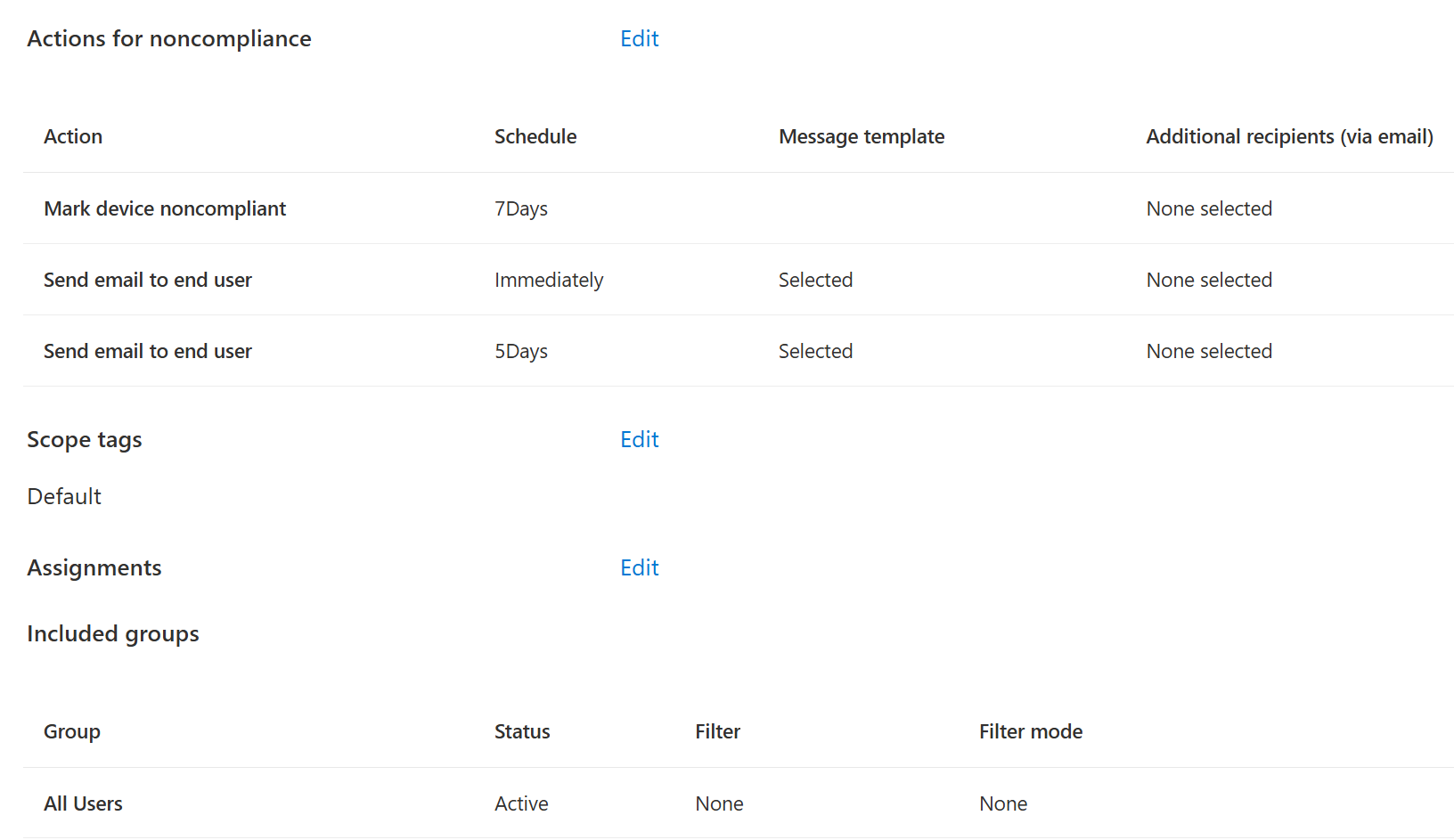
- Assign compliance to a realistic pilot group.
- Monitor per-setting results without Conditional Access enforcement.
- Fix unsupported devices, targeting and remediation instructions.
- Test Conditional Access in report-only mode.
- Enforce with a limited user and application scope.
- Expand in controlled rings.
- Review the policy after platform, security-product and access-policy changes.
Existing devices are the difficult part. They can contain old firmware, unsupported OS versions, different security products and configurations inherited from Group Policy or another MDM solution. A new device built with Autopilot is not a complete test for this population.
Compliance policies also need an owner, purpose, dependencies, exception process and review date. Custom checks should be retired when a reliable built-in setting becomes available.
Conclusion
Windows has the largest compliance toolbox, but the amount of enabled settings is not the measurement of policy quality.
Start with built-in checks. Configure the device before checking it. Use custom compliance only when there is a real gap, and treat discovery scripts as production code because their result can affect access.
For the other platforms, follow the security and enrollment model of the operating system. Do not try to copy the Windows policy setting by setting.
The final question is always the same:
Can this requirement be measured reliably, can the device be brought back to compliance, and have we tested what happens when access is blocked?
If the answer is yes, the requirement is probably ready for compliance. If not, it still needs design work.