
This blog is about advanced Conditional Access policies, like Risk-based, Device-based, app-based and more admin related policies. End users need additional licenses for some of these policies, such as Entra ID P2, which is included in M365 E5 or the E5 security add-on. This blog post also assumes that organizations ambition is to require compliant devices on all cloud resources as a part of Zero trust journey. There are of course some caveats for device based access.
Blog series overview
How about them Conditional Access Policies! Part 1 – Naming convention – Wallo Blog
How about them Conditional Access Policies! Part 2 – Policies that everyone needs – Wallo Blog
How about them Conditional Access Policies! Part 3 – Advanced policies – Wallo Blog
On my previous blog posts, I created a naming convention and Conditional access policies that everyone needs. Next some advanced Conditional access policies:
- Risk-based
- Device-based
- App-based
- More admin control
I’ll use same grouping as in my part 2 blog post and add additional groups:
- CAB001-CAB100: General block policies
- CAG001-CAG010: Admin, Admin portal, Break-glass account policies
- CAG011-CAG020: General access policies
- CAG021-CAG030: User access policies
- CAG031-CAG040: External/Guest access policies
- CAG041-CAG050: Partner access policies
- CAG051-CAG090: Device access policies
- CAG091-CAG100: App access policies
1. Risk-based Conditional Access policies – CAG011-CAG030
Risk-based Conditional Access policies require additional licenses for end users. An Entra ID P2 license is necessary to utilize the full features of Entra ID Protection and to access more options within Conditional Access policies. The Microsoft Entra Admin Center uses a dedicated Identity Protection policy page for monitoring purposes. It refers to Entra ID Protection policies as ‘User Risk Policy’ and ‘Sign-in Risk Policy. For more information about different risks, please visit What are risks in Microsoft Entra ID Protection – Microsoft Entra ID Protection | Microsoft Learn
Disable user and sign-in policies, and follow the policy settings page’s recommendation to migrate to Conditional Access policies. Risk-based Conditional Access policies provide more control, automate risk remediation, and allow you to assign different risk levels to various user groups. Configuring network locations is also crucial, as these locations will impact risk level detection and reduce false positives.
Because an Entra ID P2 license is required, create an Entra Dynamic user group using the assignedPlans property if you assign risk policies to a single group only.
Below a query for all users that have Entra ID P2 licensed:

user.assignedPlans -any (assignedPlan.servicePlanId -eq "eec0eb4f-6444-4f95-aba0-50c24d67f998" -and assignedPlan.capabilityStatus -eq "Enabled")

Group name sample: CA-Entra ID P2 licensed
NOTE! Network locations configuration is same for both Entra ID protection and Conditional Access!
CAG013 All require MFA for All Users when Sign-in risk is medium to high v1.0
This policy requires MFA when Entra ID protection detects a medium to high sign-in risk. Users will automatically remediate the risk by performing MFA. I recommend using either phishing-resistant MFA or creating a custom authentication strength that requires Authenticator push or code MFA. The choice depends on organization policy and MFA deployment, but exclude SMS or phone calls. Divide this policy into two different policies for user groups with varying MFA requirements. Remember, you need an Entra ID P2 license.

NOTE! Exclude guest, externals, break-glass and service accounts!
CAG014 All require MFA and password change for All Users when User risk is medium to high with SIF every time v1.0
This policy will require MFA and a password change using SSPR when Entra ID Protection detects user risk from medium to high. To allow users to change their passwords, enable SSPR and ensure password writeback to Active Directory is enabled in Entra Connect sync for hybrid user identities.
I also recommend MFA strength either Phishing resistant MFA or by creating a Custom Authentication strength and requiring Authenticator push or code MFA. For added security, Sign-in frequency of every time needs to be configured, to require password change every sing-in.

NOTE! For passwordless users, a separate conditional access policy is needed that will block all users with passwordless sign-in methods when sign-in risk is medium to high. Also exclude guest, externals, break-glass and service accounts!
2. Device-based conditional access policies – CAG051-CAG090
Device-based Conditional Access policies have additional requirements, as device compliance can only be evaluated on managed devices using Intune. Intune can also utilize partner connectors to third-party MDM providers, which will have their own compliance policies. I’ll describe device compliance in more detail in upcoming blog posts. For now, the focus is on using Intune device compliance and Conditional Access.
What is device compliance?
Microsoft Intune compliance policies are sets of rules and conditions that you use to evaluate the configuration of your managed devices. These policies can help you secure organizational data and resources from devices that don’t meet those configuration requirements. Managed devices must satisfy the conditions you set in your policies to be considered compliant by Intune.
First, design device compliance policies based on your organizations guidelines. Once these policies are deployed, they will evaluate the configuration of your managed devices. The evaluation results are then sent to Entra for use in Conditional Access.
Device can be either:
- Compliant: Intune has determined that the device meets all compliance policies after evaluation.
- Non-compliant: Intune has identified that this device does not meet the compliance policies.
- Unknown: The device is not managed, so its compliance status cannot be determined and is considered non-compliant.
My recommendations for device-based Conditional Access policies fall into two categories: browser-based access and modern client-based access, with Conditional Access policies tailored to each platform. Requiring device compliance for browser access has additional requirements. Configure browsers to support device authentication and SSO during Entra ID authentication. Different platforms and browsers function differently, so there are more details to consider.
NOTE! When referring to iOS, it includes both iOS and iPadOS.
CAG051-060 Require device compliance when browser
Requiring device compliance for browser access is straightforward. However, keep in mind that organizations may have cloud resources that do not support device authentication and SSO, so these resources need to be excluded. As mentioned in the Part 2 blog post, we already require MFA for all cloud resources, which will cover these excluded cloud resources. Why so many policies? For added control, of course! Organizations may face different issues on various platforms and target resources.
CAG051 All require device compliance for All users when browser on Windows v1.0

CAG052 All require device compliance for All Users when browser on iOS/Android v1.0

CAG053 All require device compliance for All Users when browser on MacOS v1.0

CAG054 All require device compliance for All Users when browser on Linux v1.0

NOTE! Make sure not to lock Entra Admin role accounts outside! Exclude guest, externals, break-glass and service accounts!
CAG061-070 Require MFA on browser excluding compliant devices with SIF 14 days
Include all target resources, regardless of whether they support device authentication, and require MFA. Use condition device filters to just exclude compliant devices. Sign-in frequency of 14 days is an example and should be carefully planned as SIF adds a requirement for periodic sign-ins for target resources, in addition to users performing MFA. This policy is designed to target those cloud resources that were excluded for previous policies. MFA strength depends heavily on organization policy. As with previous policies, this approach adds more control per platform.
CAG061 All require MFA for All users when browser on Windows excluding compliant devices with SIF 14 days v1.0

CAG062 All require MFA for All users when browser on iOS/Android excluding compliant devices with SIF 14 days v1.0

CAG063 All require MFA for All users when browser on MacOS excluding compliant devices with SIF 14 days v1.0
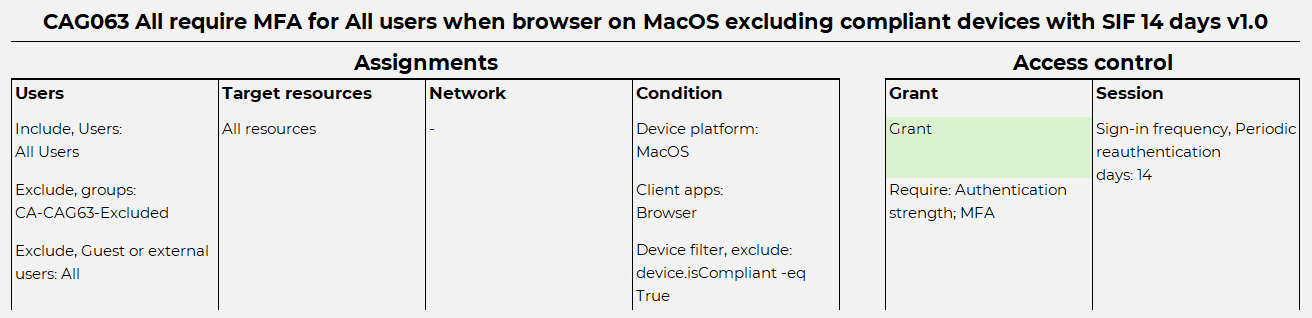
CAG064 All require MFA for All users when browser on Linux excluding compliant devices with SIF 14 days v1.0
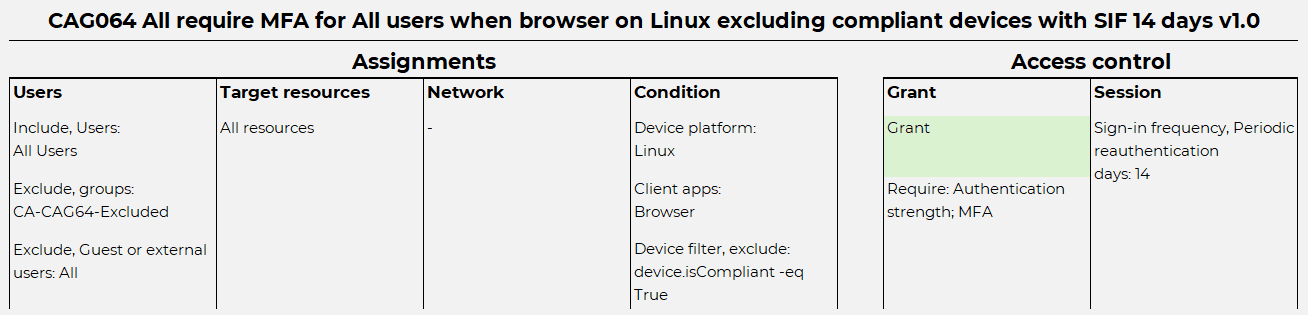
NOTE! These policies grants access to cloud applications that do not support devices authentication only using MFA! If some target resources would be excluded here, still my blog post Part 2 created Conditional Access policies would require MFA, but would miss SIF. Exclude guest, externals, break-glass and service accounts!
CAG071-080 All require device compliance for All users when Mobile apps or desktop clients
Now for Mobile apps and desktop clients. Same as previous policies, requiring device compliance. Remember to exclude cloud resources that do not work correctly with device authentication and SSO. Create this policy for every platform for added control.
CAG071 All require device compliance for All users when Mobile apps and desktop clients on Windows v1.0
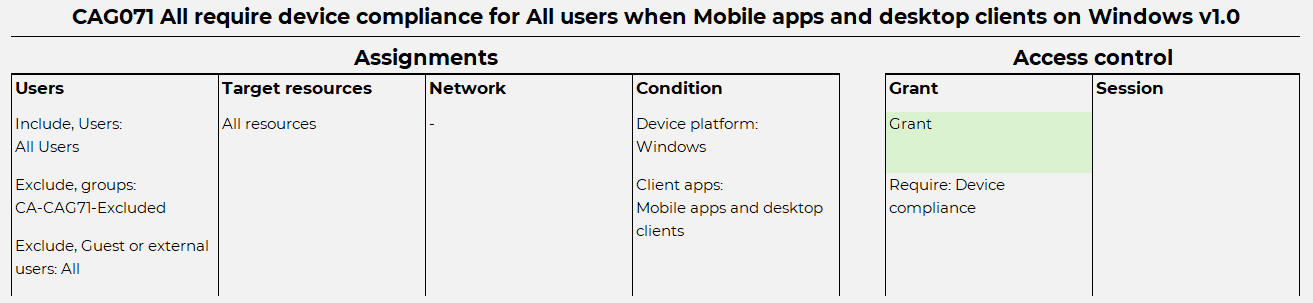
CAG072 All require device compliance for All Users when Mobile apps and desktop clients on iOS/Android v1.0

CAG073 All require device compliance for All Users when Mobile apps and desktop clients on MacOS v1.0
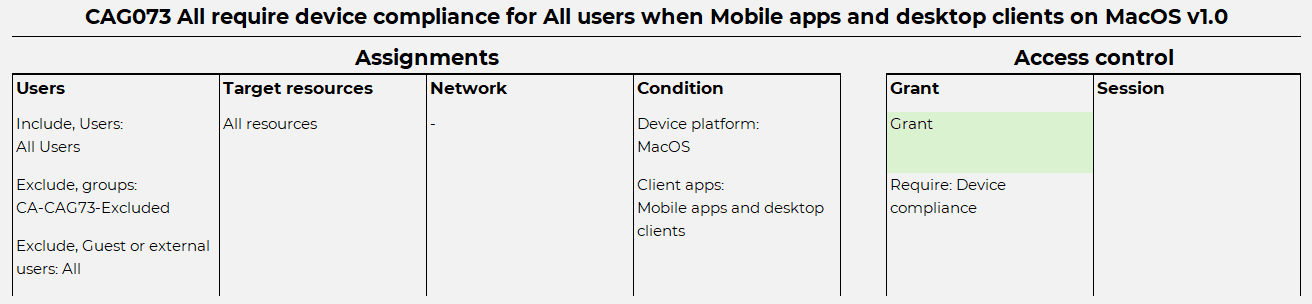
CAG074 All require device compliance for All Users when Mobile apps and desktop clients on Linux v1.0

NOTE! Exclude guest, externals, break-glass and service accounts! For Entra connect sync to function, exclude Directory Synchronization Accounts Entra role from Windows policy.
CAG081-090 All require MFA on Mobile apps or desktop clients excluding compliant devices with SIF 14 days
Simply require MFA with SIF for all platforms when using mobile apps and desktop clients, while excluding compliant devices using condition device filters. This is often necessary for the same reasons as previously established Conditional Access policies for browser access. As organizations cloud resources mature, these policies may eventually become obsolete.
CAG081 All require MFA for All users when Mobile apps or desktop clients on Windows excluding compliant devices with SIF 14 days v1.0

CAG082 All require MFA for All users when Mobile apps or desktop clients on iOS/Android excluding compliant devices with SIF 14 days v1.0

CAG083 All require MFA for All users when Mobile apps or desktop clients on MacOS excluding compliant devices with SIF 14 days v1.0

CAG084 All require MFA for All users when Mobile apps or desktop clients on Linux excluding compliant devices with SIF 14 days v1.0

NOTE! This do give access to cloud applications that do not support devices authentication only using MFA! Exclude guest, externals, break-glass and service accounts!
Device code flow policies
Some devices, like IoT devices requires alternative methods for authentication. Device code flow is an OAuth 2.0 authorization method designed to facilitate secure sign-ins on these devices by leveraging another device, like a smartphone or computer, for the authentication process. This type of authentication method can have security risks, particularly on unmanaged devices that lack security controls. Device code flow conditional access is a critical security feature that enables organizations to manage and mitigate these risks effectively.
CAB005 All block Authentication flow for all users excluding managed devices v1.0
Device code flow Conditional Access is really simple to create, but most often requires monitoring to get an idea what users or devices might use device code flow already. Most often developers or testers are using this method already, so my recommendation is to turn this policy to report-only state first and after evaluation, turn it on. Because Device code flow risks are primary for unmanaged devices, consider excluding managed devices with condition device filter.

3. App-based conditional access policies – CAG091-CAG100
App-base conditional access depends on Intune MAM capabilities, App configuration policies and App Protection policies. Intune MAM has two different deployment models, MAM and MAM-only.
- Intune MAM is typically used for Intune-managed devices to enhance application-based security and access. These devices can be either personally owned (BYOD) or corporate-owned.
- MAM-only is intended for unmanaged or third-party MDM-managed devices. These devices are not managed by Intune MDM and are also considered for BYOD use cases.
App protection policy supports Android and iOS/iPadOS. Windows is currently supported only on Edge browser. Microsoft has a very good documentation about “Data protection framework using App Protection Policies” that is designed to be a starting point for deploying App protection policies.
App protection enforcement is always implemented through Conditional Access, which necessitates different policies and additional configuration.
CAG091 All require app protection policy for All users on managed iOS/Android when Mobile app or desktop client v1.0
This policy is assigned to all target resources and requires an App Protection policy to be deployed on all applications using Entra Authentication. It can be modified to include only specific target resources, such as Microsoft 365. The control over which applications require App Protection is managed within the App Protection policy itself. This means that all client applications must support App Protection policies. If they do not, exclude them accordingly or build this policy with specific target resources rather than all resources.

NOTE! This policy has an Device filter to include all managed devices by using MDM application ID.
CAG092 All require app protection policy for All users on unmanaged iOS/Android when Mobile apps and desktop clients v1.0
Similar to CAG93, but for unmanaged devices, this policy allows unmanaged devices to access organizations cloud resources using supported applications only, making it suitable for MAM-only and BYOD use cases. Whether BYOD is an option depends on organizations policies. The policy requires a device filter to exclude all managed devices by leveraging the MDM application ID. This approach enables end-users to use BYOD, typically limited to accessing specific organizations cloud resources such as M365 for email, Teams, and other applications.

NOTE! Since CAG92 Conditional Access policy is designed with MAM-only, CAG72 must be modified to include only MDM managed devices by using condition device filter device.mdmAppId -eq "0000000a-0000-0000-c000-000000000000". Without any modification, CAG72 would require compliant device, whitch would initiate mandatory device enrollment to Intune! This policy has a Device filter to exclude all managed devices by using MDM application ID.
4. Admin access conditional Access policies
On my Part 2 blog post, I listed two different Conditional access policies for admins. Those two will work, but to add additional requirements and even more secure admin access, here’s more policies.
CAG003 All require device compliance for privileged admin roles excluding named locations v1.0
As the name suggests, this policy requires device compliance and will exclude trusted locations. Implementing this can be a bit tricky, as it will include only privileged admin roles and may involve many different use cases.
From Microsoft, these are privileged admin roles:
Application Administrator
Application Developer
Attribute Provisioning Administrator
Attribute Provisioning Reader
Authentication Administrator
Authentication Extensibility Administrator
B2C IEF Keyset Administrator
Cloud Application Administrator
Cloud Device Administrator
Conditional Access Administrator
Directory Writers
Domain Name Administrator
External Identity Provider Administrator
Global Administrator
Global Reader
Helpdesk Administrator
Hybrid Identity Administrator
Intune Administrator
Lifecycle Workflows Administrator
Partner Tier1 Support
Partner Tier2 Support
Password Administrator
Privileged Authentication Administrator
Privileged Role Administrator
Security Administrator
Security Operator
Security Reader
User Administrator

NOTE!  I recommend including these roles as a good starting point, but this depends heavily on organizations policy. Feel free to exclude or include more roles that fit better. For example, if any of these roles are assigned to a partner account, the user must have a compliant device to be able to work!

CAUTION! Do not lock your Privileged Admin roles out! Make sure you TEST this setting with limited Admin roles first and make sure Break-Glass accounts are excluded!
Some user accounts with assigned roles are needed for configuring applications on servers, such as Entra Connect sync, Intune connector or Universal print connector. Therefore, I have excluded named locations, which requires careful design. It’s important to have a thorough discussion with the network team about public IPs.
CAG004 Admin portals require device compliance for All users excluding named locations v1.0
Similar to CAG003, but this policy does not include any admin roles, as managing Azure resources has its own Role-Based Access Control (RBAC) features. Therefore, I recommend limiting access based on Admin portals. This policy also includes exclusions based on named locations. They use same Target resources like my blog post Part 2, CAG002.

NOTE! You can use same trusted location exclusion than on CAG003, but I do recommend to create it's own named locations.

CAUTION! Do not lock your Admin roles out! Make sure you TEST this setting with limited Users first and make sure Break-Glass accounts are excluded!
Conclusion
In this blog, we’ve explored advanced Conditional Access policies, including risk-based, device-based, app-based, and more admin-related policies. Advanced policies is all about adding additional layer of security, mostly by using device compliance requirement. Should be easy to implement, right? Is there more that these policies? Definitely yes, just warming up!
Reaching this point has involved extensive planning, testing, and deployment. Some of my policies still need significant reworking based on the organization’s specific ambitions and requirements. I always start with the basics, such as requiring MFA, and then progress to more advanced policies like requiring compliant devices or phishing-resistant MFA. Always remember not to shoot yourself in the foot—don’t lock your admin accounts out of your tenant!
End result when Conditional Access policy naming convention is fully implemented from Part 1, policies that everyone needs from Part 2 and all Advanced policies. What do you think of the end result is in end-user sign-in experience?

How do I start?

How log does it take to get to advanced policies? Best case 6 months, worst case more than a year.
Thanks for reading this far, feel free to comment!
I see loads of apps getting caught with the policy CAB005 All block Authentication flow for all users excluding managed devices v1.0 when users access things using unmanaged or non-compliant devices
One Outlook Web
Outlook Mobile
Office365 Shell WCSS-Client
SharePoint Online Web Client Extensibility
Various SAML apps that login
I definitely would avoid this policy
Well that is the idea of this policy, only block Auth flow devices that are not-compliant. Like stated, this policy should start with report-only mode and evaluate and understand the impact. Definitely this should in the end be turned on and find alternative ways for authentication.
CAG004 Admin portals require device compliance for All users excluding named locations v1.0
It looks like Microsoft have included some user facing things in the Microsoft Admin Portals:
Microsoft Office 365 Portal
Microsoft 365 Security and Compliance Center – I suspect this is users following links to release messages from Quarantine – the URL for users to access their quarantine is security.microsoft.com/quarantine – this is also the hostname used to administer security.
Annoyingly “Microsoft 365 Security and Compliance Center” isn’t available as an option to Exclude.
Yes, you are totally correct. Currently there’s no way to have that working for the end user. Maybe some day 🙂