
Intune compliance policy is one of those topics which looks very simple in the Intune admin center. Select a platform, enable some requirements, assign the policy and you are done. In a test tenant, maybe yes. In a real environment, not really.
The settings are not the difficult part. The difficult part is deciding what “compliant” should mean for your organization, what happens when a device does not meet it, and how much user impact you are willing to accept. When Conditional Access is added, a wrong compliance decision is not only a red mark in a report. It can block the user from company services.
In this first post I go through the overall design. The next post goes deeper into Windows, custom compliance and the other supported platforms.
What is a compliance policy?
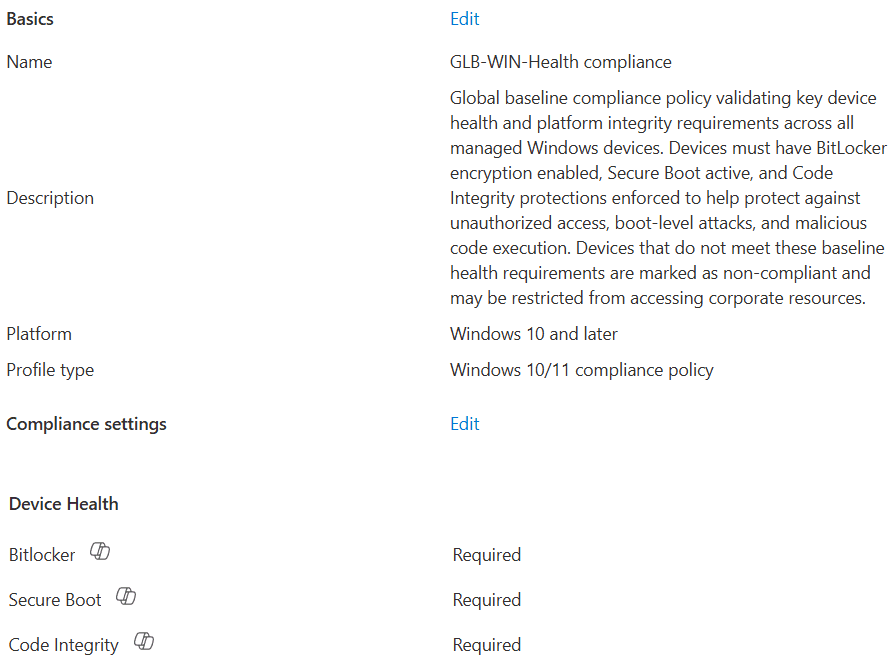
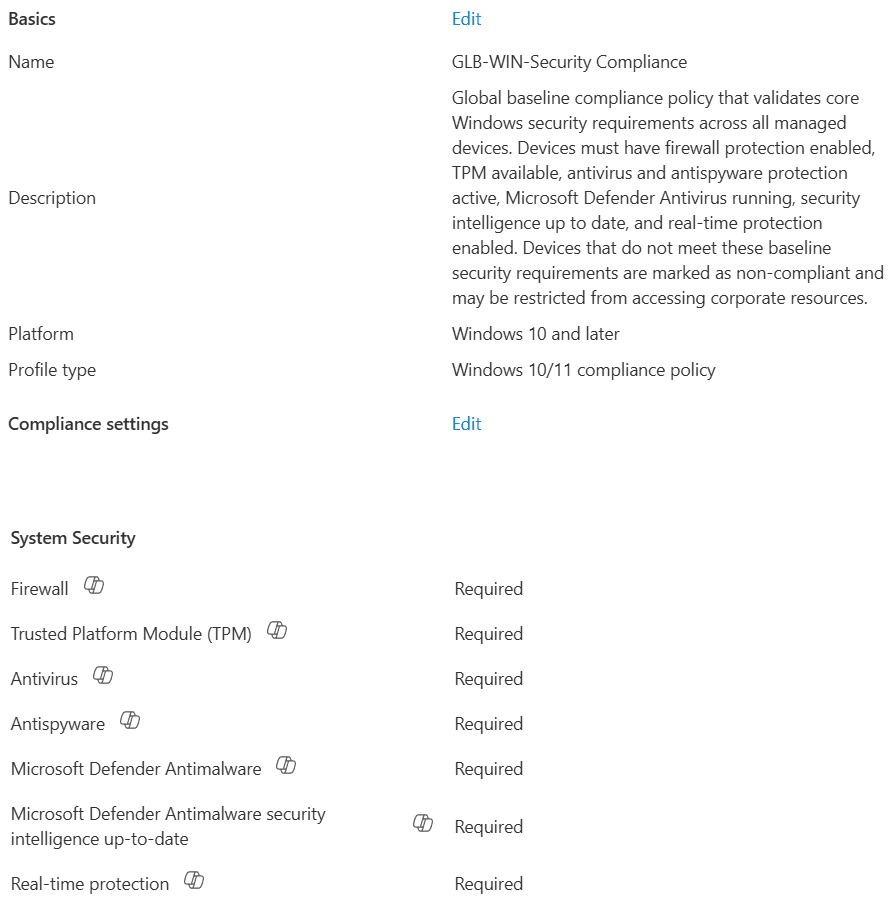
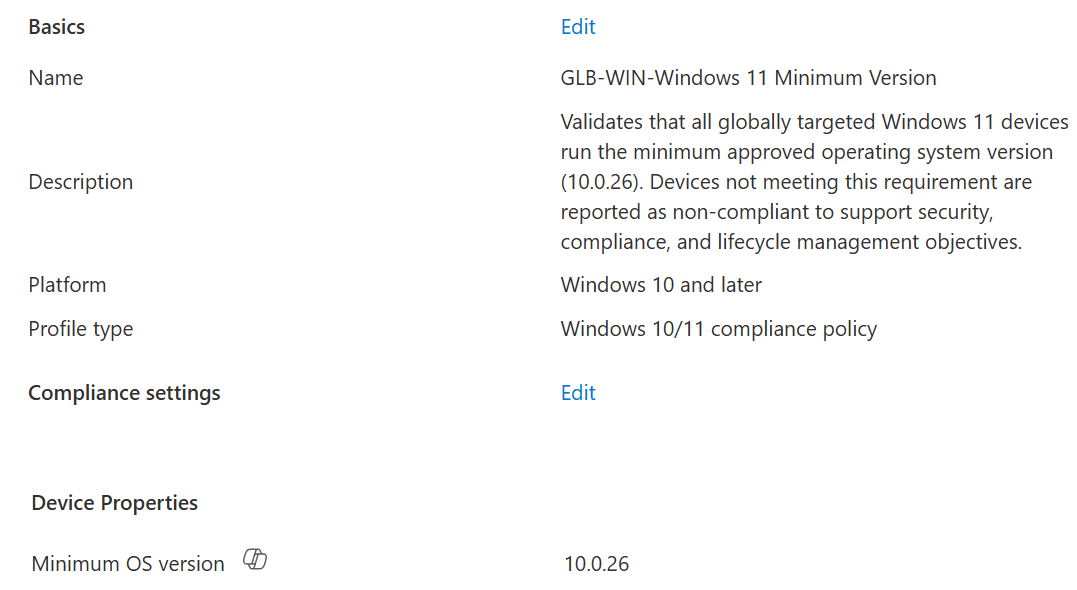
A device compliance policy is a set of rules which Intune uses to evaluate a managed devices, and only on managed devices. Typical rules check things on Windows such as operating system version, encryption, firewall, antivirus, Secure Boot, password requirements or a risk signal from Microsoft Defender for Endpoint. The exact settings depend on the platform.
The result is a compliance state. Intune can report the state, run configured actions for noncompliance and send the state to Microsoft Entra ID. Conditional Access can then require the device to be marked as compliant before access is granted to selected cloud resources.
NOTE! Compliance policy is mainly an evaluation and access-control signal. It is not a replacement for configuration profiles, endpoint security policies or security baselines. Those policies configure the device; compliance checks whether selected requirements are met.
This difference is easy to forget. If I require BitLocker in compliance, I also need a configuration that enables BitLocker and a working recovery-key process. Otherwise I have created a gate, but not the road which helps the device to pass through it.
Two layers which should not be mixed
Intune compliance has two different layers:
- Compliance policy settings are tenant-wide settings. They define general behavior, including how Intune handles devices without an assigned compliance policy and how long a device compliance status remains valid.
- Device compliance policies are platform-specific policies assigned to user or device groups. These contain the actual rules evaluated on Windows, macOS, iOS/iPadOS, Android, Linux.
I review the tenant-wide settings before I create any platform policy. The setting for devices with no compliance policy assigned is especially important. If these devices are treated as compliant, a device can look acceptable without receiving the control you thought was protecting it. If they are treated as not compliant, you need to make sure every intended device receives a suitable policy before Conditional Access starts enforcing the result.
NOTE! A strict tenant default is a good destination, but it can be a bad first click in an old tenant. First find devices which have no applicable policy, understand why, and fix the targeting. Then change the default with a controlled rollout.
The compliance flow in practice
- Intune assigns a platform-specific compliance policy to a user or device.
- The managed device checks in and evaluates the applicable rules.
- Intune calculates the device compliance state from the assigned policies and the built-in/default compliance evaluation.
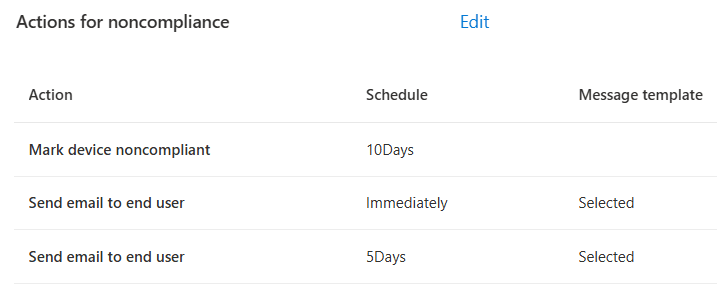
- Configured actions for noncompliance start according to their schedules. “Mark device noncompliant” exists in every policy and can be immediate or delayed.
- Microsoft Entra Conditional Access can use the compliant-device signal when evaluating access.
- The user or IT fixes the failing condition, the device checks in again, and the state is evaluated again.
A device must satisfy all applicable compliance requirements to be compliant. This is why overlapping policies require care. Splitting policies can improve ownership and troubleshooting, but every additional policy also adds another possible reason for noncompliance.
Start from the access decision, not from the settings list
My preferred design order is this:
- Identify the resources and users where a compliant-device requirement gives real value.
- Define the minimum device posture needed for that access.
- Confirm that configuration policies can create and maintain that posture.
- Define user communication, grace periods, support and exceptions.
- Only after this, build Conditional Access enforcement.
This keeps the policy connected to a business and security decision. It also prevents the common design where every available switch is enabled because it sounds secure. A compliance policy should contain requirements which are meaningful, measurable, supportable and recoverable.
How I structure policies
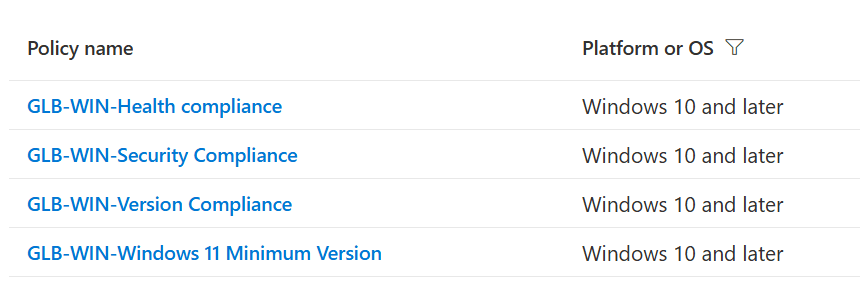
There is no single correct number of compliance policies. One large policy is easy to assign but can be harder to own and change. Several smaller policies can separate a base posture, operating-system lifecycle and Defender risk, but overlapping assignments make the final result more complex.
For many environments, I would start with a small platform baseline and add separate policies only when there is a clear reason, such as different ownership, different rollout speed, different platform capability or a high-impact requirement that needs its own pilot. The naming should show platform, scope and purpose. The description should explain why the policy exists, not only repeat its name.
Assignments: users, devices and filters
Compliance policies can be assigned to user groups or device groups. A user assignment follows the user to their applicable managed devices. A device assignment is useful when the requirement belongs to the device regardless of the person using it, for example shared or userless scenarios. Intune assignment filters can add device-level precision to a group assignment.
I normally avoid clever targeting which nobody can explain six months later. Dynamic groups and filters are useful, but they should have one clear job. If a filter is used to separate shared Windows devices, name it that way and document which enrollment or device property makes the decision.
NOTE! Pilot groups should contain real variation: remote users, older hardware, different models, existing devices and at least one difficult case. A pilot made only from the IT team’s newest laptops proves surprisingly little.
Actions for noncompliance and grace periods
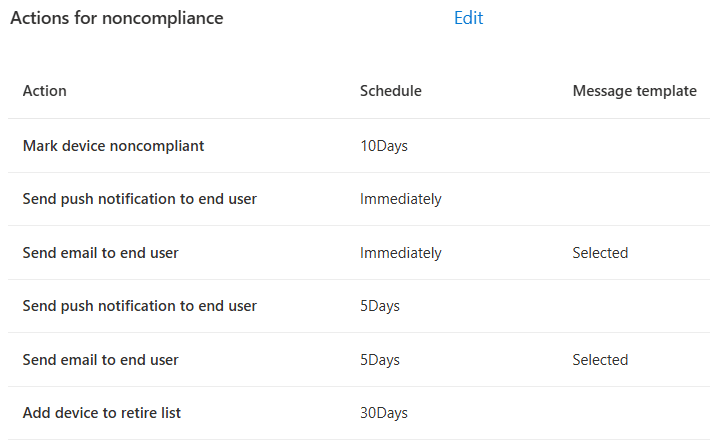
Every compliance policy contains the action to mark the device noncompliant. Additional actions depend on the platform and can include email, push notification, remote lock and adding a device to a retire list. Microsoft documents which actions are available for each platform.
The schedule is part of the security design. Immediate noncompliance can be correct for an active high-risk signal. It can be too aggressive for a minimum OS version when thousands of existing devices still need an update and restart. A grace period gives time to remediate before access is affected, but during that time the device is not yet treated in the same way as an immediately noncompliant device.
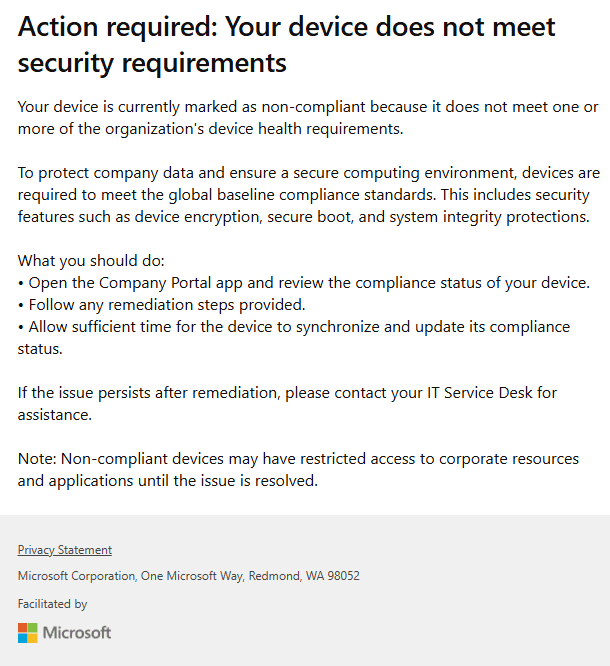
User messages should say three things: what failed, what the user can do, and where to get help. A generic “your device is not compliant” notification moves the troubleshooting work directly to the service desk.
Conditional Access: where the result becomes enforcement
Compliance alone reports and reacts. Conditional Access is where the status can become an access requirement. The common access control is “Require device to be marked as compliant.” Microsoft recommends testing Conditional Access in report-only mode and excluding emergency access accounts from policies to reduce the risk of locking out the organization.
I do not enable a broad compliant-device requirement on the same day as the first compliance policy. First I want to know how many devices fail, why they fail, whether the status updates reliably and whether users can remediate the issue. Then I pilot Conditional Access with selected users and resources before expanding it.
NOTE! Treat compliance and Conditional Access as one rollout even when different teams own them. Intune Admin team can make a technically correct policy which still creates a bad access outcome if the Entra Conditional Access policy, exclusions or authentication flow was not tested together.
Monitoring and troubleshooting
Start with the reports in Intune, but do not stop at the overall compliant percentage. Look at the device, the assigned policies, the setting-level status, the last check-in and the user association. The default compliance policy can also affect the final state, so check it when the configured policy looks correct. Microsoft documents states such as compliant, noncompliant, in grace period, error and unknown, and explains the default policy evaluation.
For Windows, a fresh sync is often only the beginning. Some signals depend on device health attestation, security-product state, reboot or the Intune Management Extension. A recently changed setting can therefore take time to become a fresh compliance result. Before changing the policy, confirm whether the device has evaluated it and whether the underlying Windows state is actually current.
When a device is blocked, I use this order:
- Confirm which Conditional Access policy made the access decision.
- Confirm the compliance state and the exact failing setting in Intune.
- Check assignment, exclusions, filters and the default compliance policy.
- Check whether a configuration policy should remediate the setting.
- Sync, restart when the signal requires it, and allow a new evaluation to reach Intune and Entra.
- If the result is still wrong, collect device-side diagnostics and review service health before changing production requirements.
A practical build checklist
- Write the purpose and access impact of the policy.
- Use built-in settings when they measure the requirement you need.
- Deploy configuration before or together with compliance.
- Keep initial requirements small and defensible.
- Use a realistic pilot and review setting-level failures.
- Design notifications and support instructions before enforcement.
- Test Conditional Access in report-only mode, then with a limited pilot.
- Document exclusions, ownership and review dates.
- Review OS versions and security dependencies as platforms change.
Conclusion
A good compliance policy is not the one with the most enabled settings. It is the one which gives a trustworthy device signal, has a clear remediation path and can be enforced without creating unnecessary lockouts.
In upcoming Part 2, I go through how I apply this thinking to Windows, when custom compliance is useful, and what changes when the platform is macOS, iOS/iPadOS, Android or Linux.